-
- By far the most common mistake is to forget to specify the proper columns to tell SharePoint how to join the lists
- Looking up data on an empty column. If this happens make the lookup column required
- SharePoint Designer workflows are not portable between servers, lists, libraries, or farms. If you need to develop code in a dedicated development environment consider writing Visual Studio workflows.
- By far the most common mistake is to forget to specify the proper columns to tell SharePoint how to join the lists
Problem
You don’t understand how to lookup data between lists in a SharePoint Designer workflow or you’re not getting data when you lookup information between lists; usually you lookup data when one lists contains a “lookup” column that links to a list item in another list.
Demonstration
In this example we are going to create two lists, the first, a master list will provide the information we are going to query on a workflow. After we create the two lists we will walk through a simple non-real-world example of how to query information between the lists in a SharePoint Designer workflow.
Following the steps below, create two lists: one the master, one the detail. Have the second list item reference the parent list using a lookup column. Add a column that contains information that you would like to retrieve from the parent list such as the column shown below.
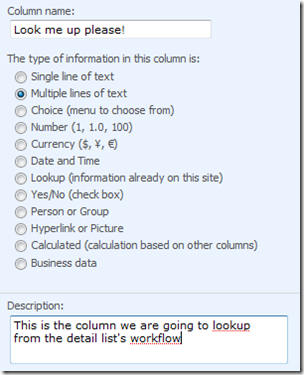
Populate the master list with a few rows of data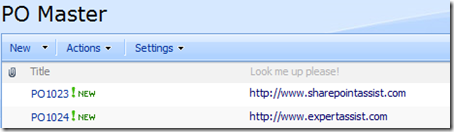
Create the detail list that contains a “Lookup” column to the master table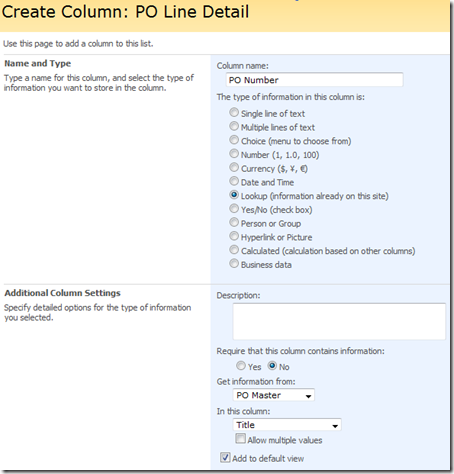
Open the site in SharePoint Designer and create a new workflow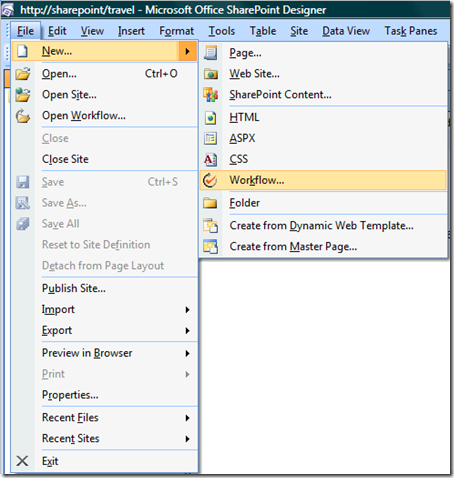
Associate the lookup with the detail list then click next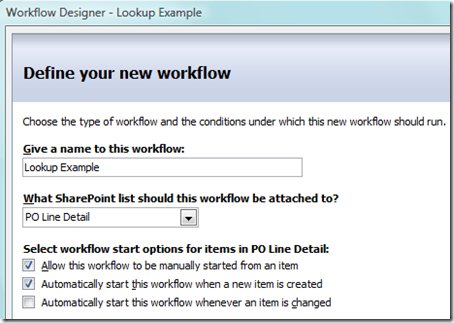
Under workflow actions let’s set a workflow variable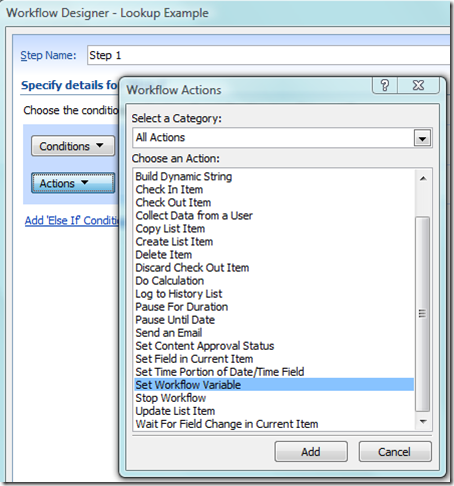
Create a variable to store the result of our lookup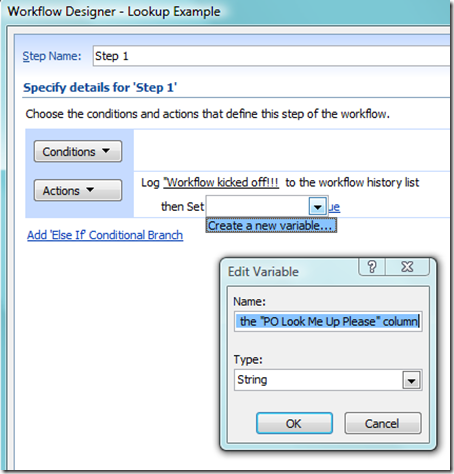
Select the function icon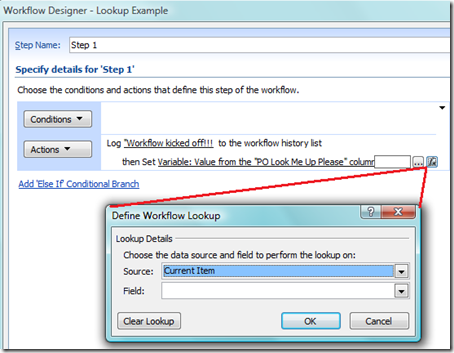
Now change the source list, where we will be pulling our information from, to the master table. Also specify the name of the field that contains the information we want to pull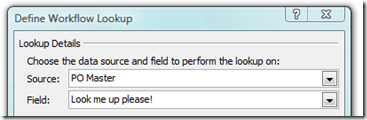
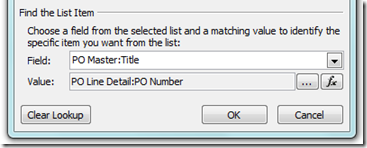
Next, tell SharePoint how the master and detail lists are linked. This is where mistakes are made! You want to link to the column of the master list that you used to populate the detail list’s lookup column
Accept the warning message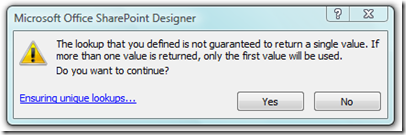
Add an action that logs the message to a list (If your SharePoint server is email enabled send the workflow variable in the body of an email message)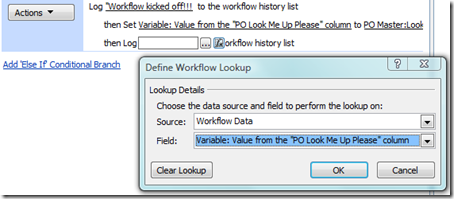
The final result of my workflow looks like this

Finish the workflow and note how the workflow tree appears under the site navigator in SharePoint Designer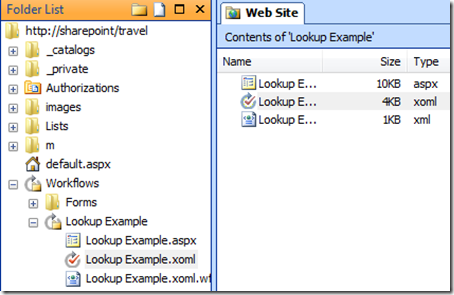
Now test the workflow by adding an item to the detail list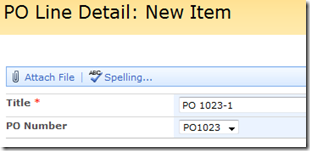
Upon save pull down on the item’s edit menu to view the workflows that are associated with this item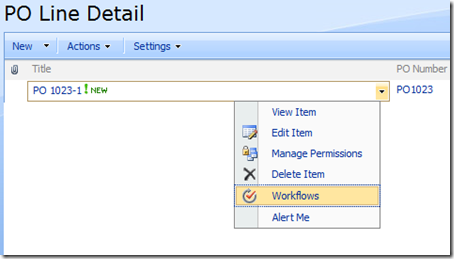
You will see your workflow in the workflow settings screen and, if everything worked as expected you should see the workflow in the completed list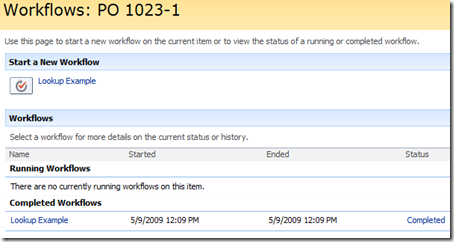
Click on the hyperlink for the completed workflow to see the history, as you can see we looked up http://www.sharepointassist.com/ from the master list’s “Look Me Up Please!” column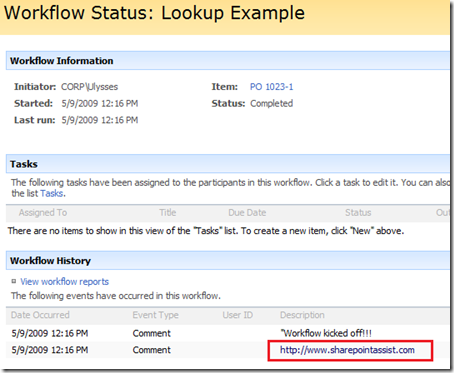
Common Mistakes
a WordPress rating system
a WordPress rating system
Popularity: 43% [?]
Hi, thank you for an excellent article.
I wonder if you might be able to point me in the right direction with a little problem that is driving me mad.
In your example screenshots (and others I have seen) in your workflow diaglog boxes, next to the “value” feilds you have two buttons:
[...] and [Fx]
In my SharePoint designer (SP2) I only have the Fx button.
I am guessing the [...] button would allow me to look up fields which is what I need to do.
Any idea why its missing?
Really appreciate your help.
Regards,
Brendan
a WordPress rating system
a WordPress rating system
You’re there! Select the [Fx] button and choose a source other than “Current Item”.
a WordPress rating system
a WordPress rating system
I used to handle lookup columns in workflows in this way, but I have since figured out that it’s better if you reference the lookup ‘ID’ instead. To do this in your example you must simply change the “Find the List Item” section of your workflow lookup to the following:
Field = PO Master:ID
Value = PO Line Detail:PO Number
This ensures that you are pulling the correct list item because ID is unique and never changes… It could come in handy if you have multiple items in your lookup list with the same title, OR if the title of an item in the lookup list changes mid workflow.
a WordPress rating system
a WordPress rating system
Thank you! I have just spent the past two days trying to figure out how to do a double lookup on the same list and failed miserably. Now that I have read your explanation my understanding was complete - and I solved my problem in minutes.
a WordPress rating system
a WordPress rating system
Does anyone have any information regarding the same problem, but with Visual Studio workflows? Maybe best practices for configuration tables, etc.?
a WordPress rating system
a WordPress rating system
Rob,
If you are asking about how to handle SharePoint lookup columns that you want to access from Visual Studio Workflows the same principle will apply. For example, when you access the master list, you can pull the lookup value which will give you the ID of the subordinate list in the “;#39″ format where 39 would be the ID. You can then use that ID value to retrieve the subordinate list using the standard list selection methods.
a WordPress rating system
a WordPress rating system
This is a bit of an addition to Andrew’s comment. In your lists it is good to use lookups because lookup columns will help you to have uniqueness when you lookup values from another list. Then in your SPD workflow it is also good to save the lookup to a “List Item ID’ variable type. This will save the ID of the lookup, even if your lookup displays the title. This makes it so that your workflow will not break if you change the display column for that lookup and ensures uniqueness.
Also, this works great if you need to lookup a value from a list where that column is also a lookup to another list. For example, if you have three lists, A, B, and C, where your workflow on list A needs to lookup a column from list B, but that column in list B is a lookup to list C. In this scenario you want to save the lookup to the column in List B as a “List Item ID” variable, and then in another step Lookup whatever column you want from list C where the ID = your List Item ID variable. Again this ensures uniqueness and a change to either lookup column will not break your workflow.
a WordPress rating system
a WordPress rating system
Hi,
Thank you for the informative post. Can you please show how to extract the value if multi-select is enabled in the lookup column. Once you get the value how can we iterate through the comma delimited string.
Thanks,
Kal
a WordPress rating system
a WordPress rating system
I hope this thread is still active?
I have an infopath form that gets data from a secondary data source and if that item is selected adds to the secondary data source the infopath form ID. I want to use work flow to send me an email with all items in the secondary data list that matches my infopath ID. I can’t seem to apply what your doing here to my problem? Any suggestions? Thanks for the resource of this website!
a WordPress rating system
a WordPress rating system
The article provides instructions on how to handle lookup columns in SharePoint not InfoPath. In order to get your data to the workflow you have to promote the columns you have, lookup 1 and lookup 2, into SharePoint columns. From there you can simply reference the columns in the workflow email. Furthermore, if your infopath form submits to promoted fields that are SharePoint lookup field then you can use the contents of this article, otherwise, simply promote the columns and then you’ll be all set.
Ulysses
a WordPress rating system
a WordPress rating system
We have been studying and trying to duplicate your results above on a project we are working on and have been unsuccessful. We are wondering if your example above is missing a step. We are not sure where we are going wrong.
a WordPress rating system
a WordPress rating system
I’d like to do the same except that the workflow has to be initiated from a 3rd list.
Can it be done?
a WordPress rating system
a WordPress rating system
Add a small workflow on the 3rd list that “jiggers” the 2nd list by updating a single column. When that “jigger” occurs from the 3rd list the 2nd list’s workflows will trigger.
a WordPress rating system
a WordPress rating system