
Ulysses Ludwig’Blog
SharePoint 2013 Lab Build - Part 2 - Windows Server 2012 Installation
This article describes the steps necessary to create a new Windows Server 2012 instance on VMWare Fusion, followed by the configuration of Active Directory, DNS and IIS.
Note that HyperV, VMWare Fusion, or any other virtualization software that supports Windows Server 2012 as a guest will suffice.
SharePoint 2013 Lab build – 8 Part Series
- SharePoint 2013 Lab Build - Part 1 - Getting Started
- SharePoint 2013 Lab Build - Part 2 - Windows Server 2012 Installation (YOU ARE HERE)
- SharePoint 2013 Lab Build - Part 3 - SQL Server 2012 Installation
- SharePoint 2013 Lab Build - Part 4 - Security Configuration
- SharePoint 2013 Lab Build - Part 5 - SharePoint Server 2013 Install
- SharePoint 2013 Lab Build - Part 6 - SharePoint Server 2013 Configuration
- SharePoint 2013 Lab Build - Part 7 - Visual Studio and SharePoint Designer Installation (INCOMPLETE)
- SharePoint 2013 Lab Build - Part 8 - Windows Azure Workflow Installation and Configuration
Table of Contents
- Create the Virtual Machine and Install Windows Server 2012
- Add Roles and Features
- Review Installed Components
- Run Windows Update
Create the Virtual Machine and Install Windows Server 2012
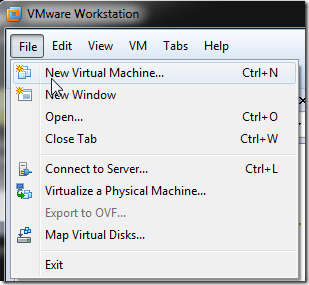
Open VMWare Fusion and create a new virtual machine.
Follow the wizard to configure the virtual machine.
Select the Windows Server 2012 ISO file downloaded from Microsoft in Part 1 of this series.
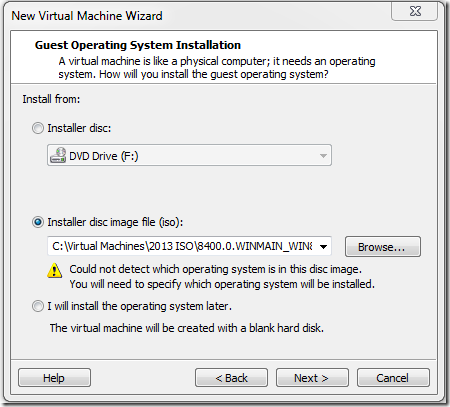
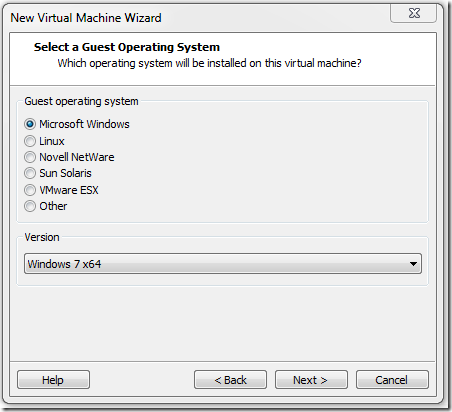
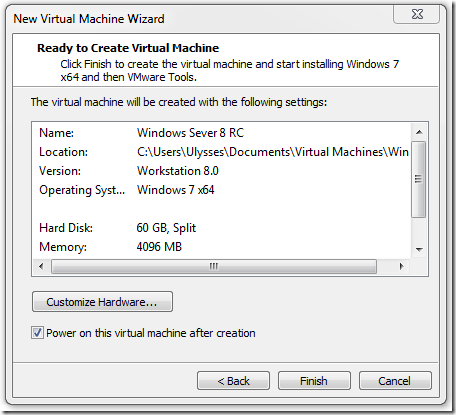
VMWare does not have a Windows Server 2012 guest configured. Therefore, install as Windows 7 x64 and the installation should proceed without issue.
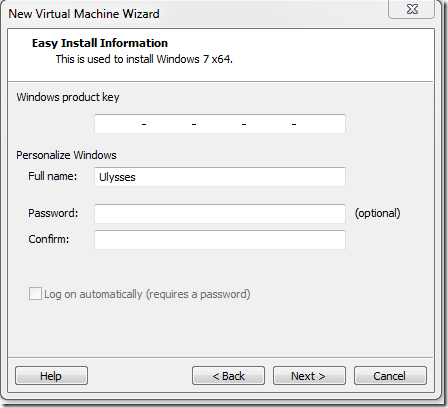
Apply the Windows product key.
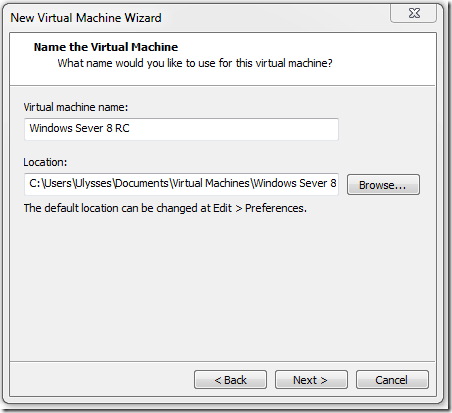
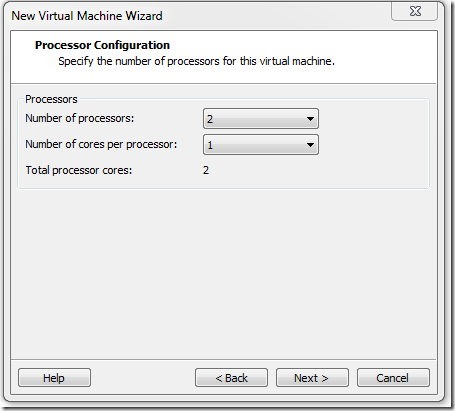
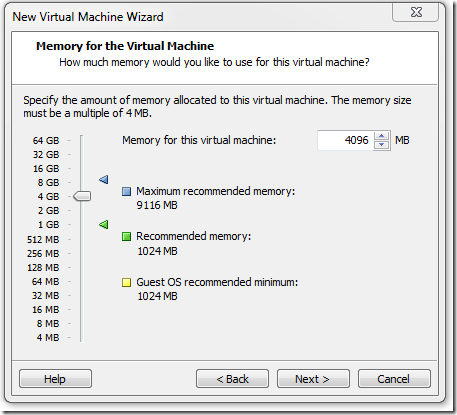
Configure the hardware specifications for the virtual machine.
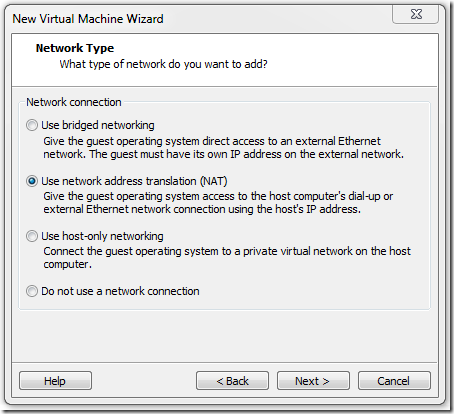
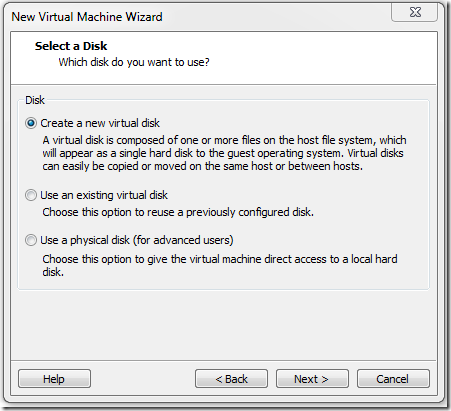
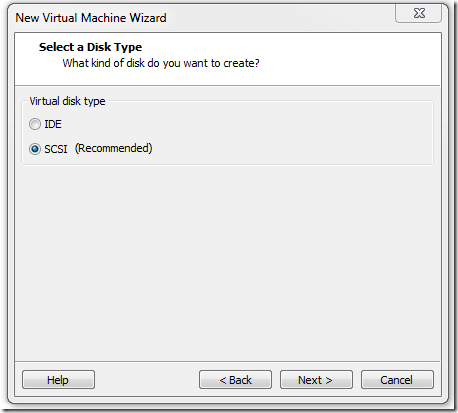
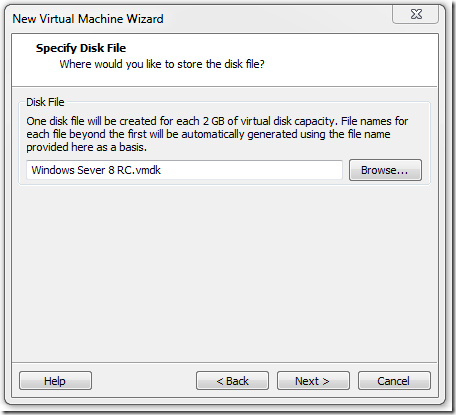
The virtual machine is now ready to be created.
If the first option is chosen, Windows Server 2012 will be installed without a user interface. Select the second option.
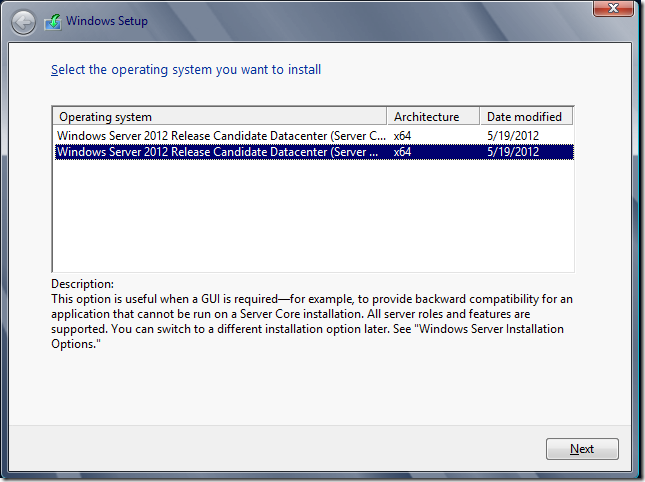
Success! Windows Server 2012 is now installed.
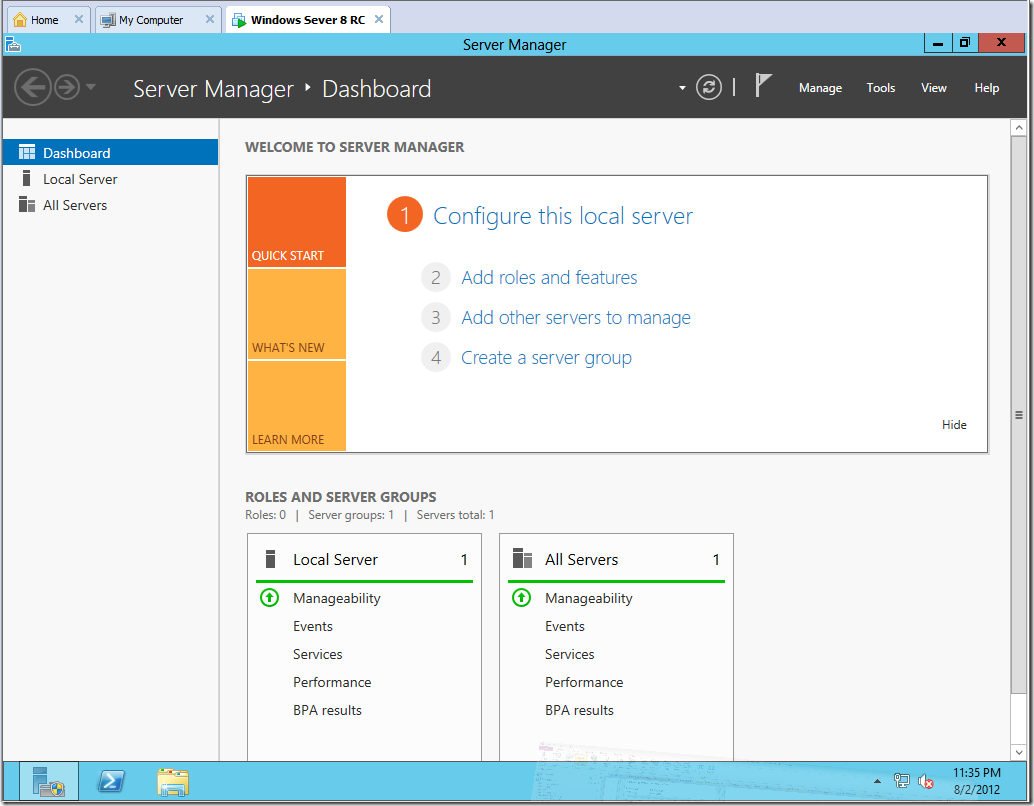
Add Roles and Features
Open Server Manager and select Add roles and features.
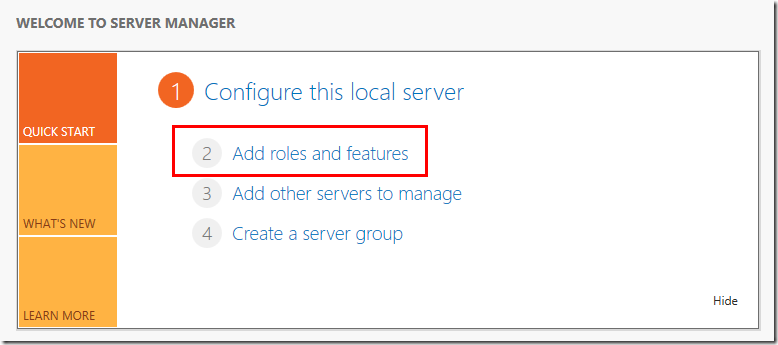
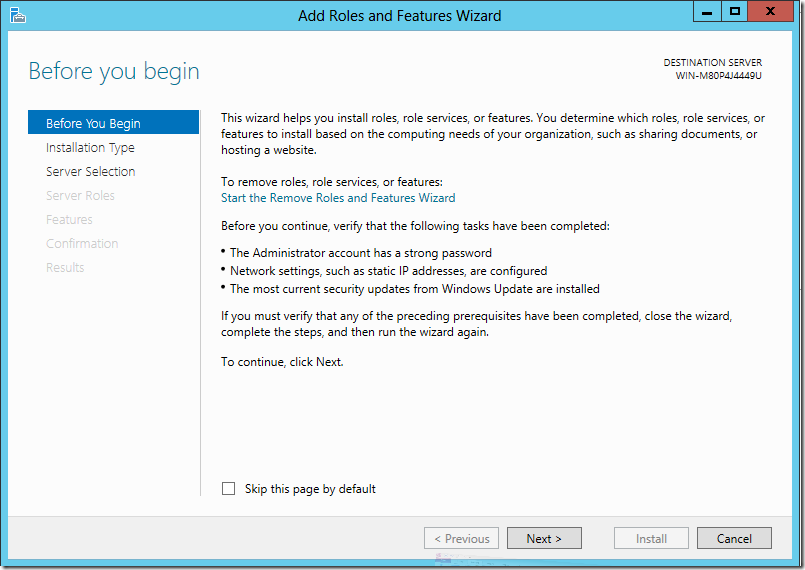
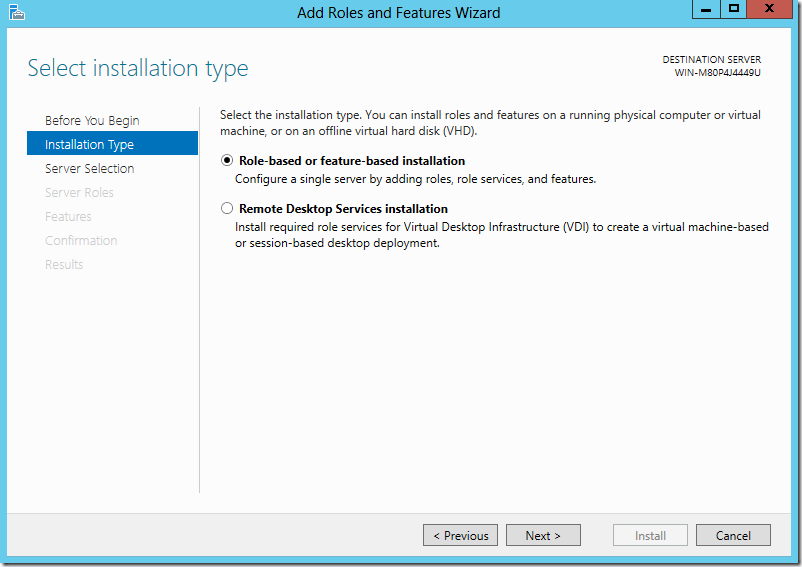
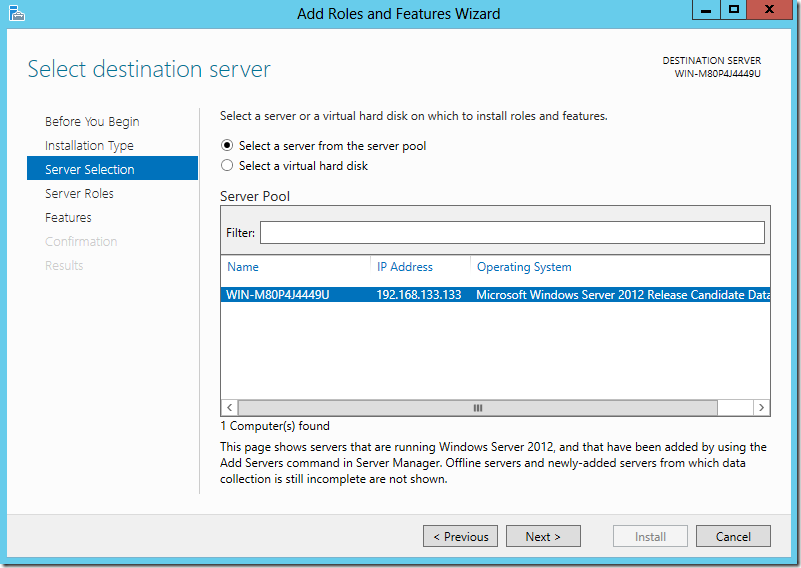
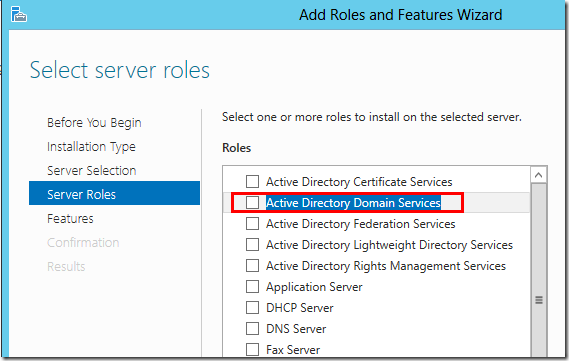
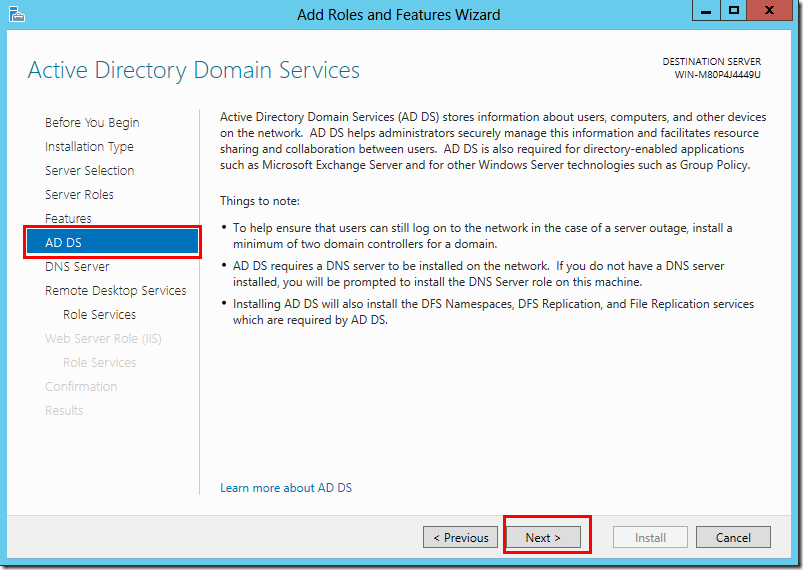
Start by adding the Active Directory Domain Services role.
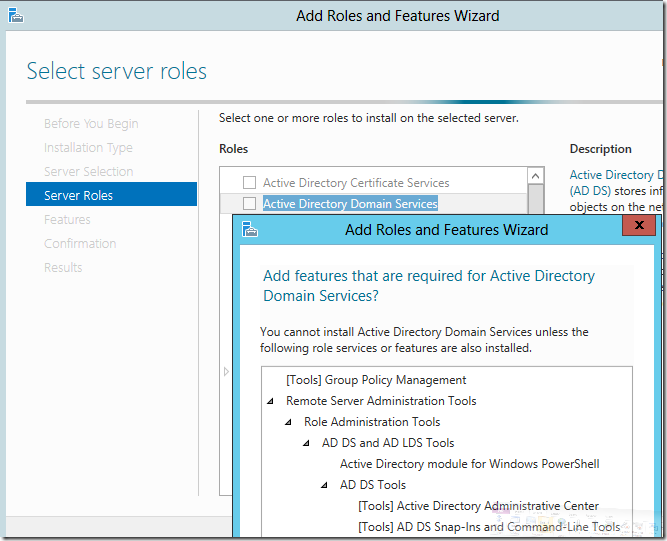
Allow the necessary role services and features to be installed.
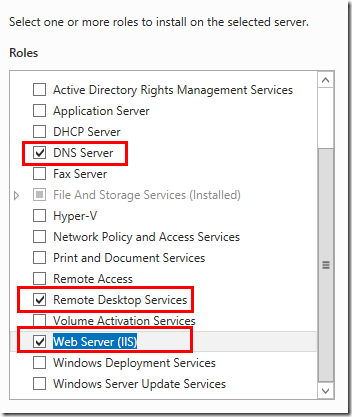
Add the remaining roles to the server:
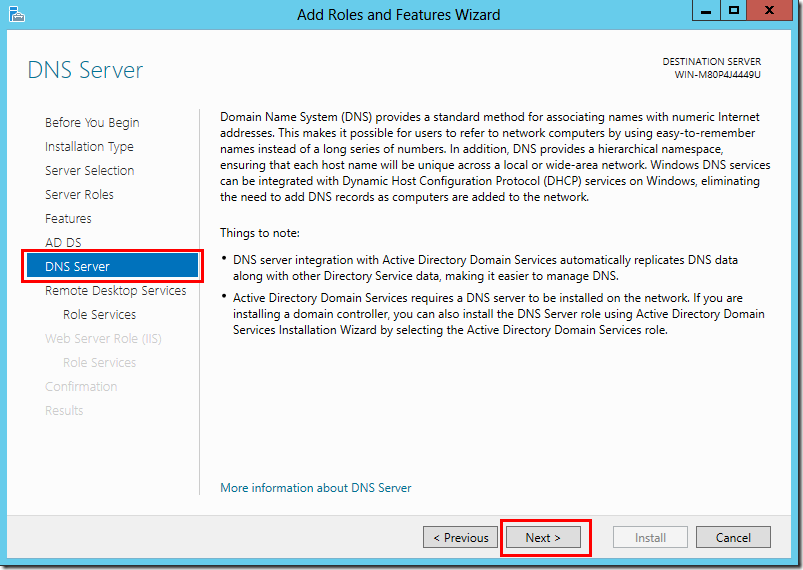
- DNS Server
- Remote Desktop Services
- Web Server (IIS)
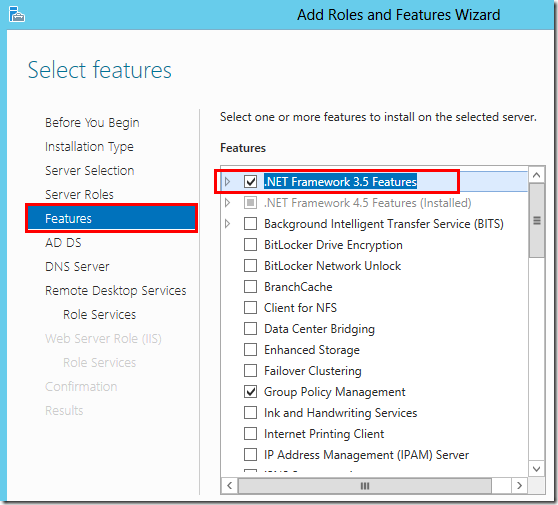
This is absolutely not necessary but it may be useful.
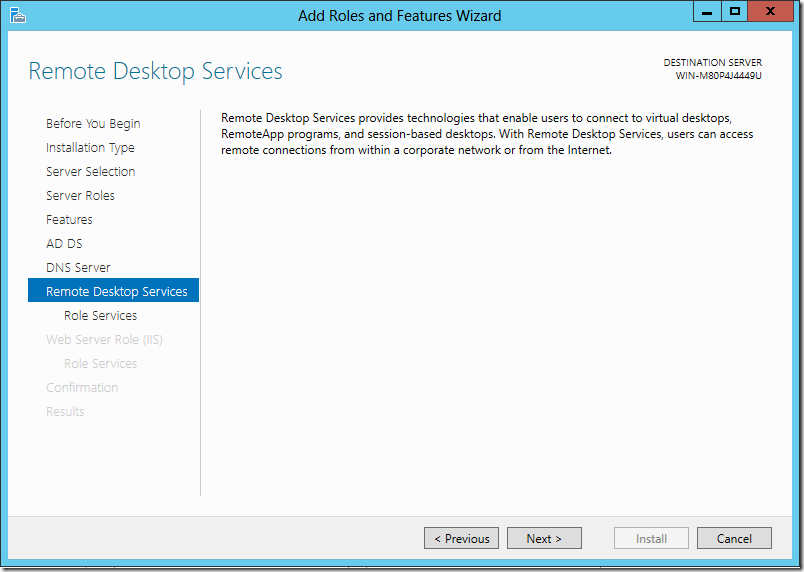
Choose some optional components for Remote Desktop Services.
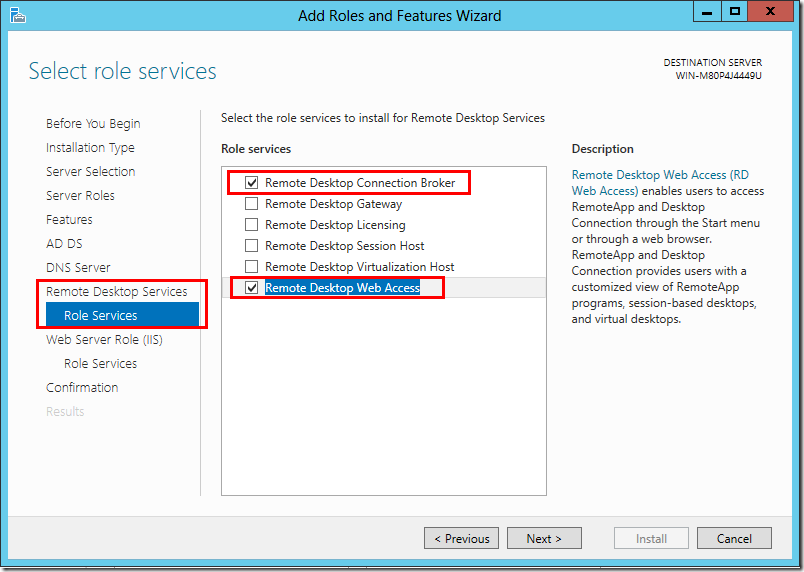
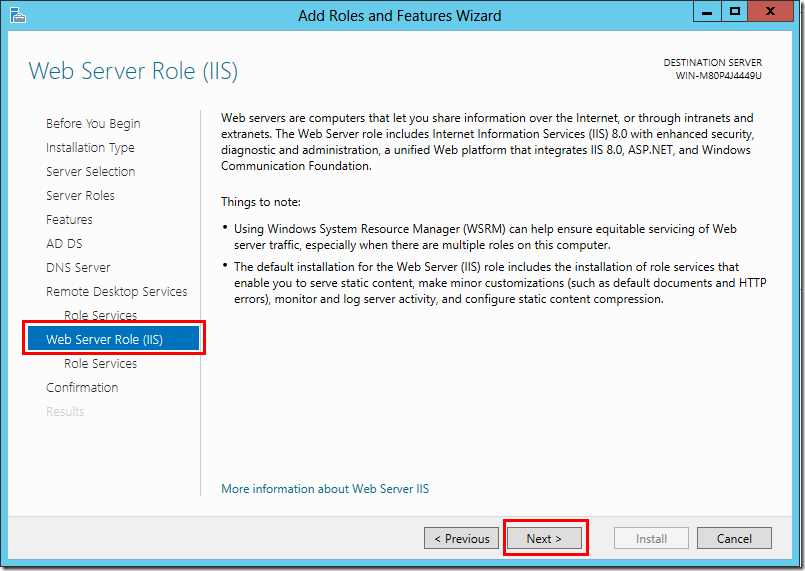
Accept the default IIS roles.
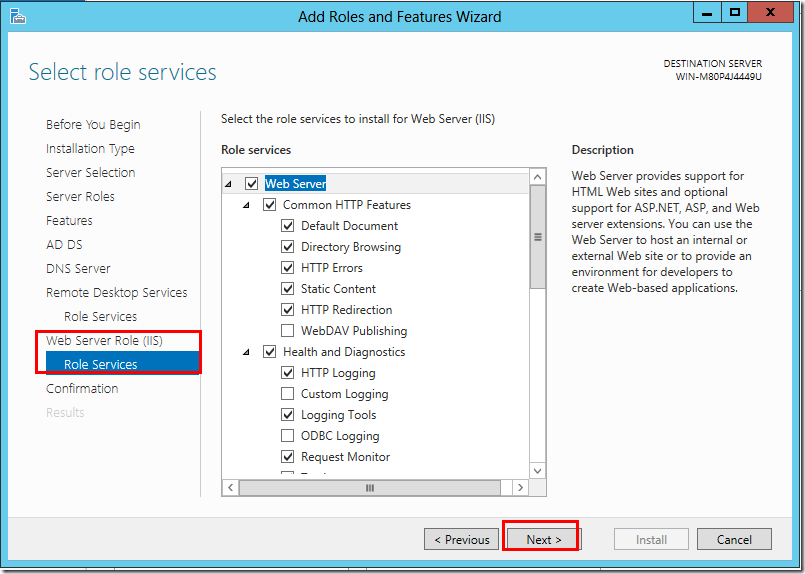
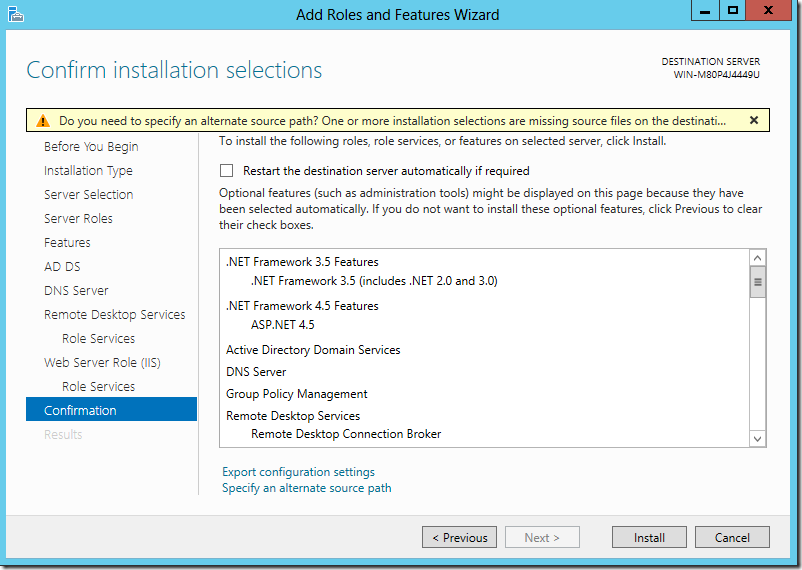
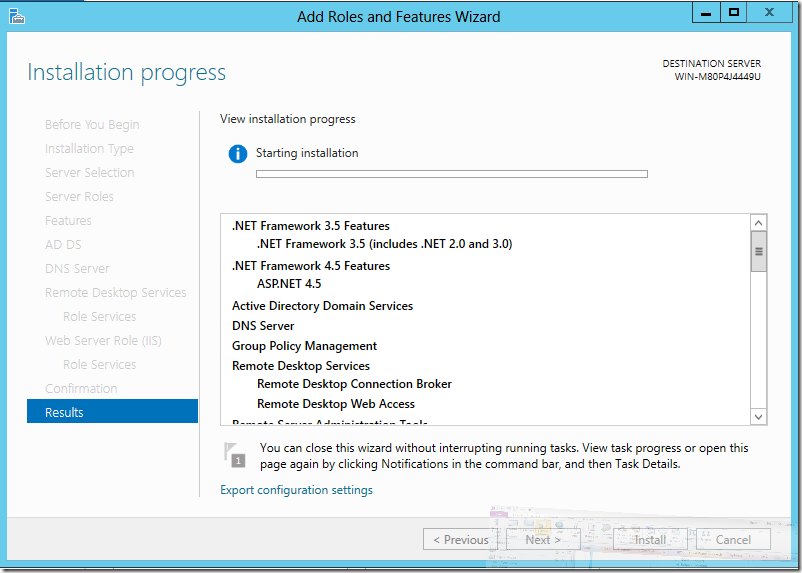
Begin the installation.
Review Installed Components
Review the newly installed server
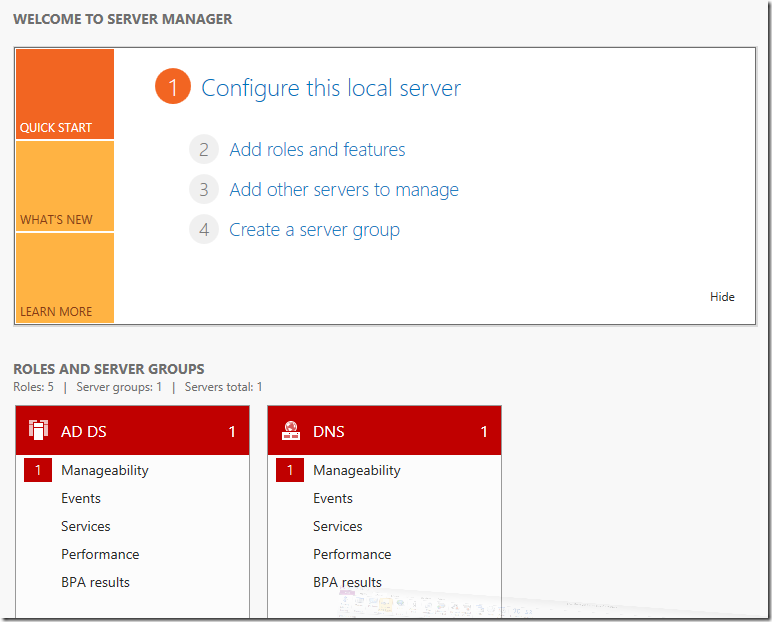
All of the items appearing in red in Server Manager will need to be addressed.
Before configuring Active Directory, rename the server to “SP2013″.
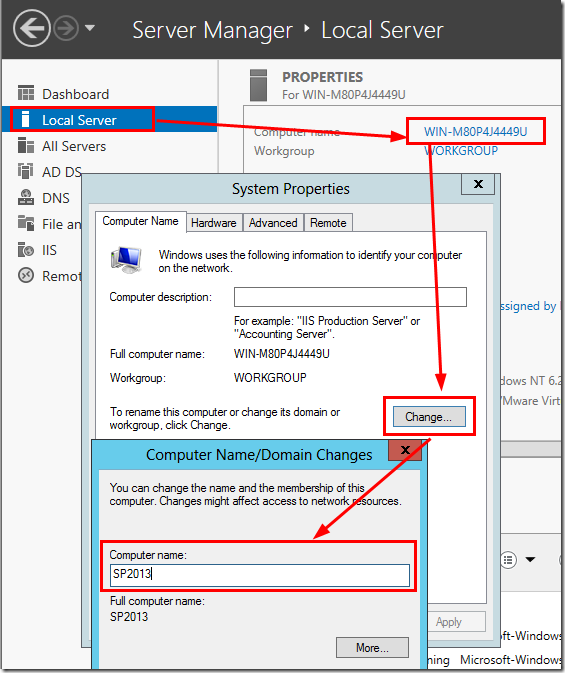
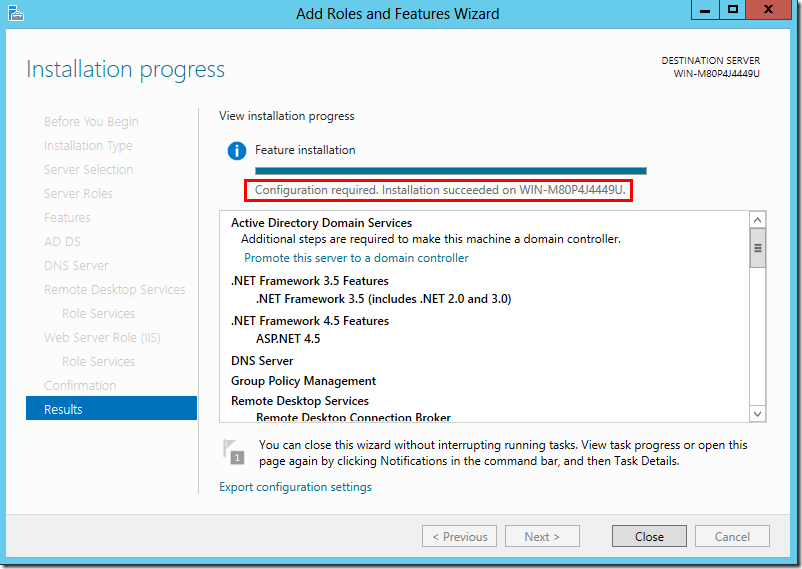
After restarting the server, step through the actions required (identified by red boxes).
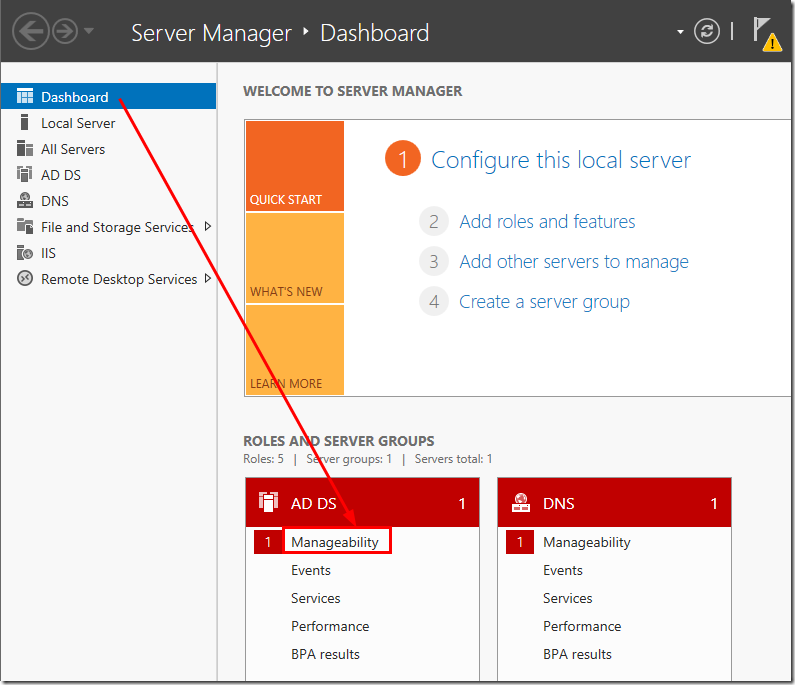
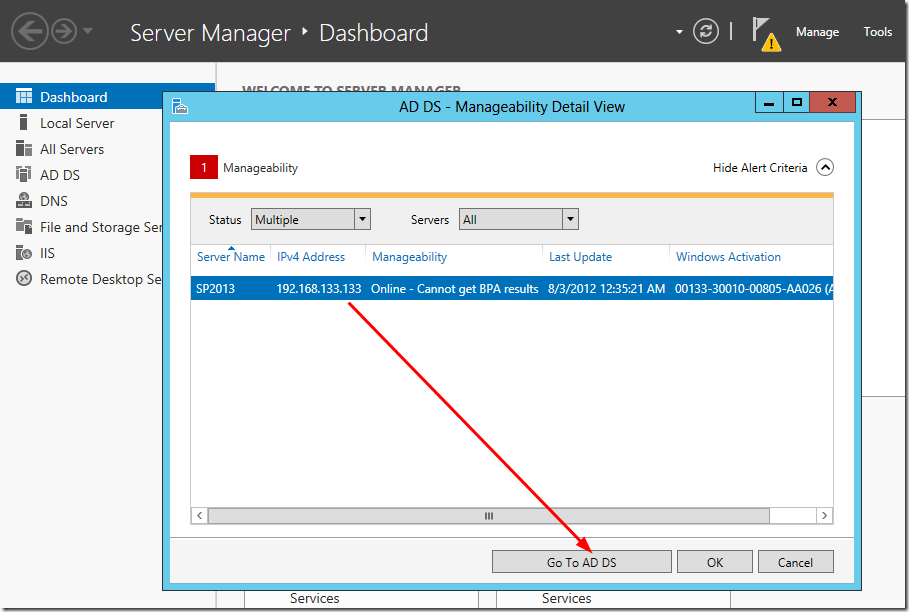
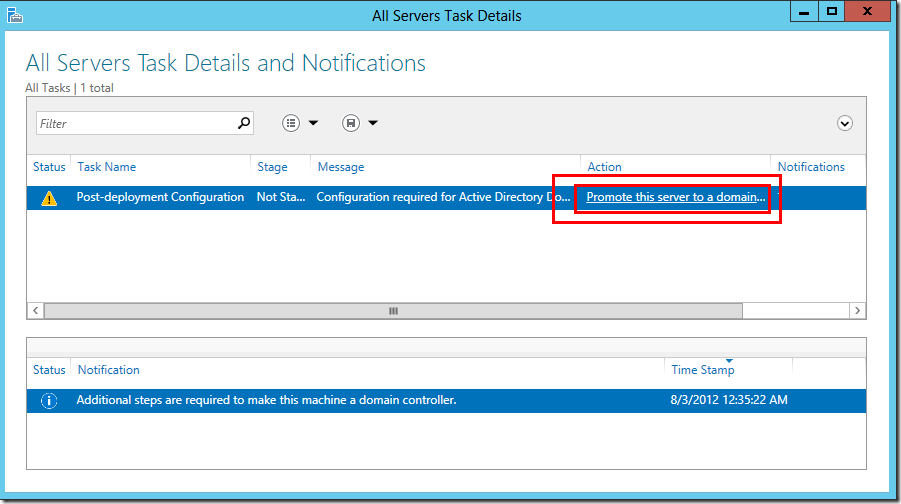
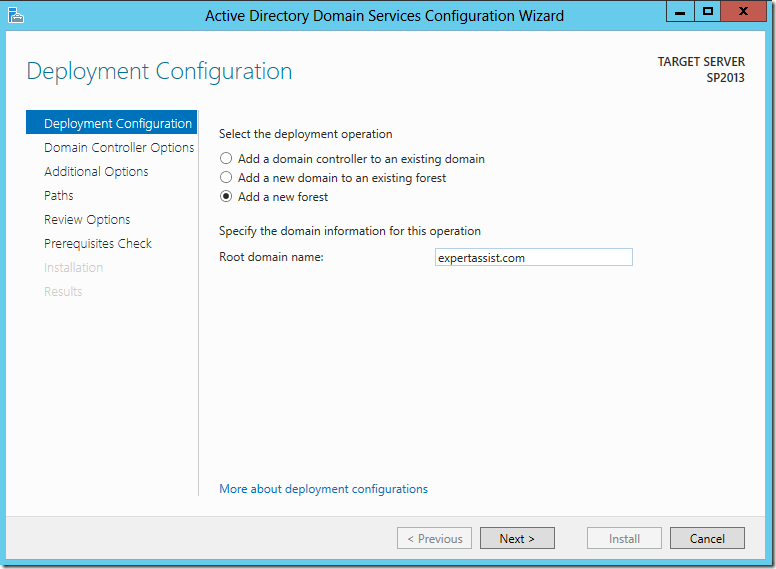
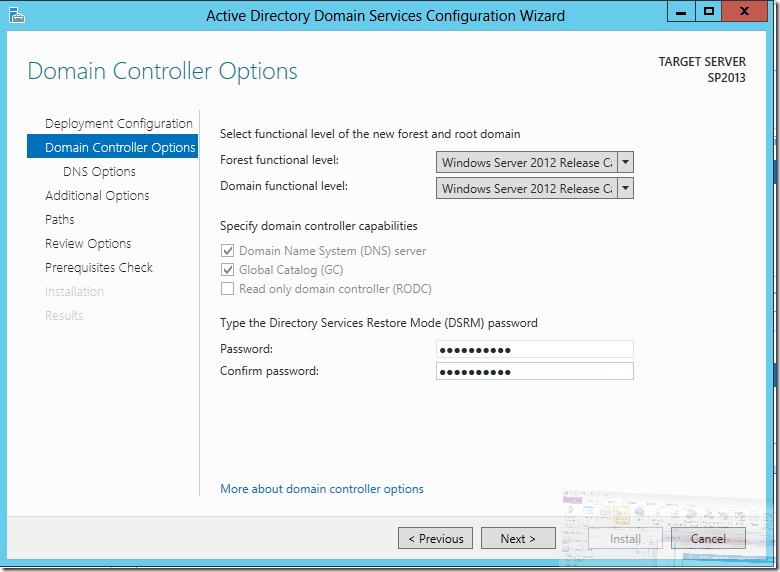
Ignore this message for the time being.
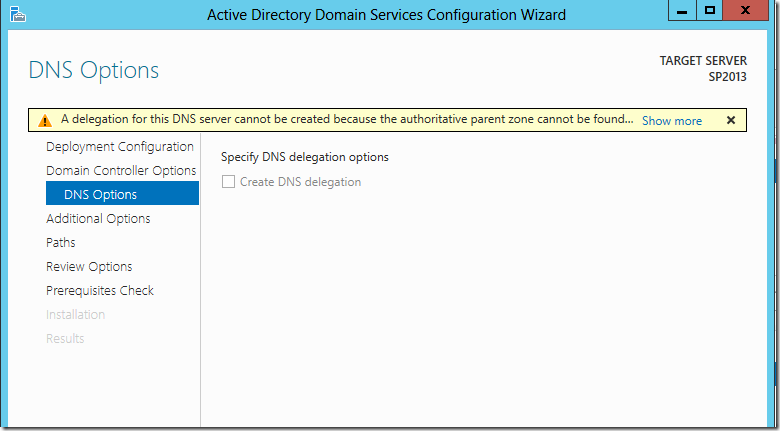
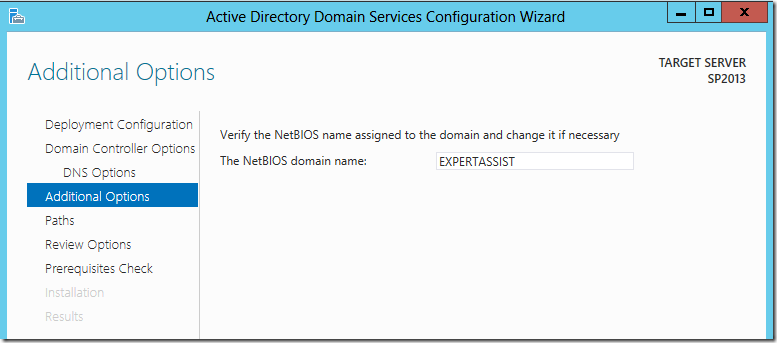
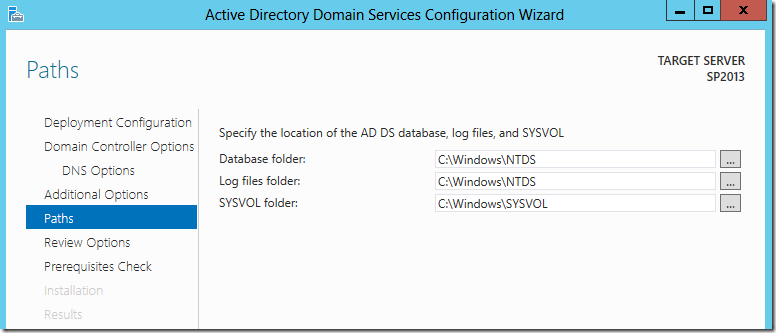
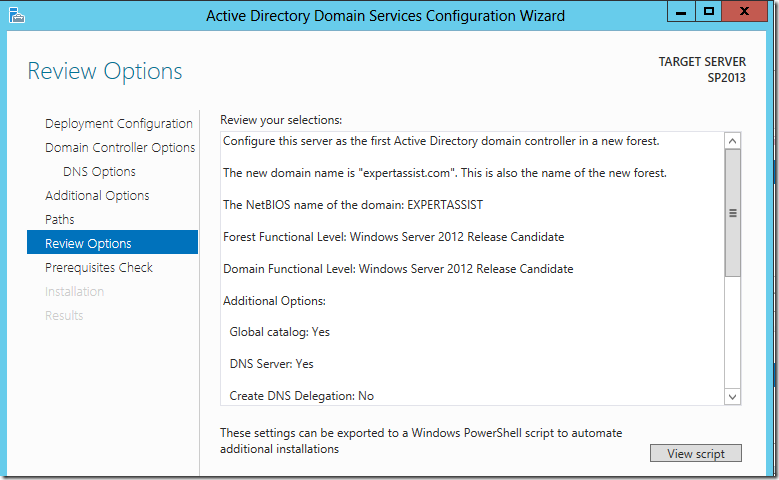
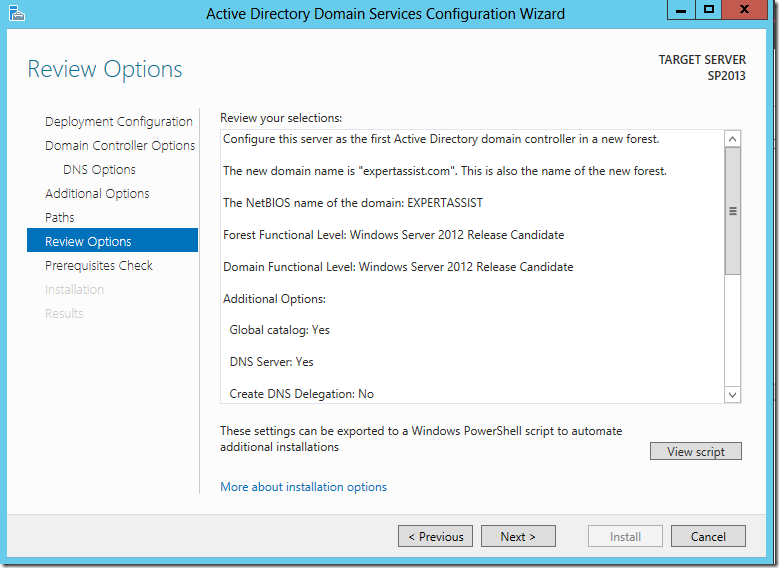
Review that the configuration options are correct.
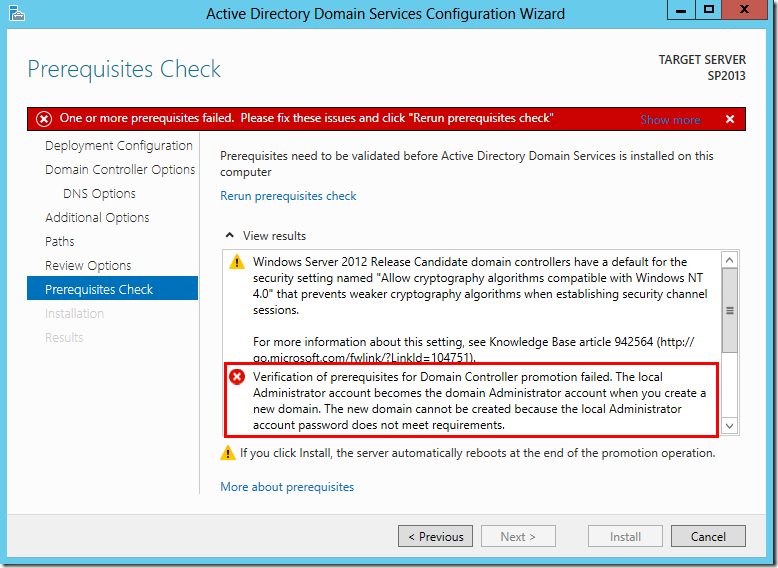
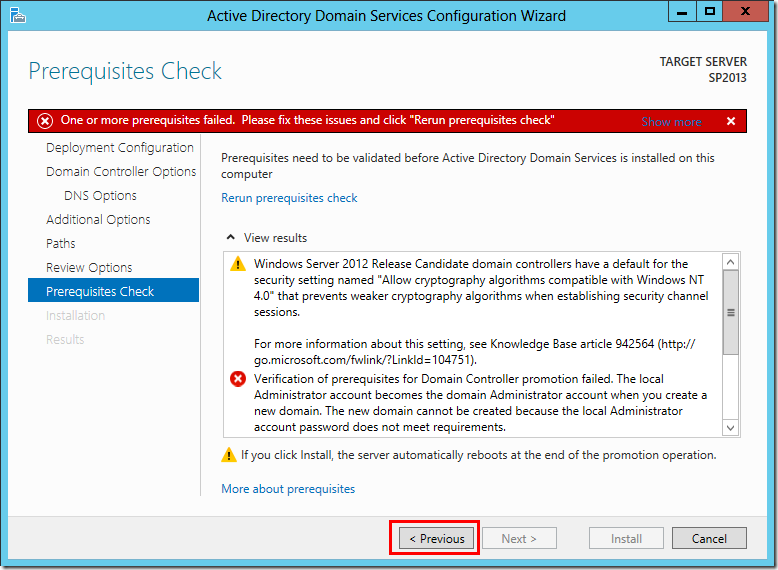
The Administrator account is required to have a password set.
Go back to Server Manager > Dashboard.
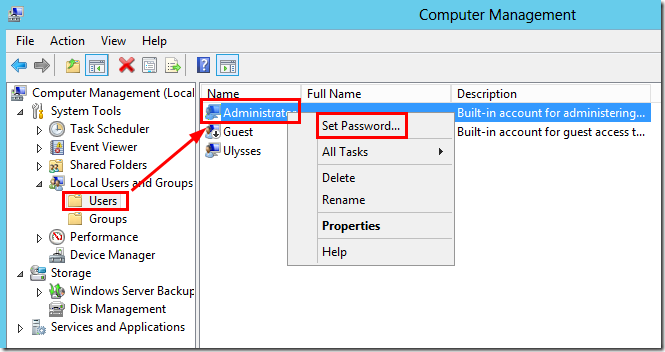
Select Tools > Computer Management.
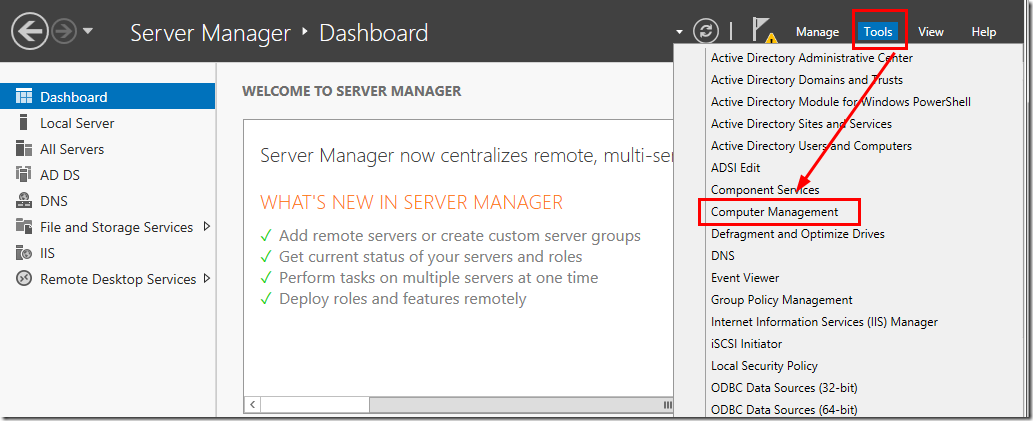
Set a password for the Administrator account.
Go back to the Active Directory Domain Services Configuration Wizard, then click Previous to re-run the prerequisite check.
Click Next to re-run the prerequisite check.
The prerequisite check will pass with warnings. Currently, the machine does not have a static IP, which is absolutely not allowed in a real production domain.
Active Directory Domain Services is now ready to be installed.
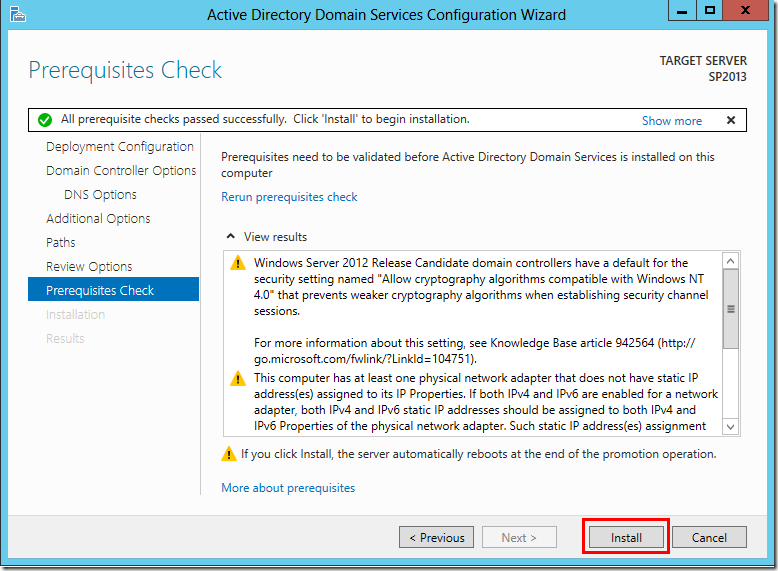
The server will reboot during the install process, which is understandable because the machine is changing from a relatively unsecured workgroup environment to a domain controller, where security is of utmost importance.

After rebooting, Server Manager will re-open.
Note that there will still be red dashboard items that the server would like addressed, but after closer inspection, most errors are “Manageability” related to BPA (Best Practice Analyzer).
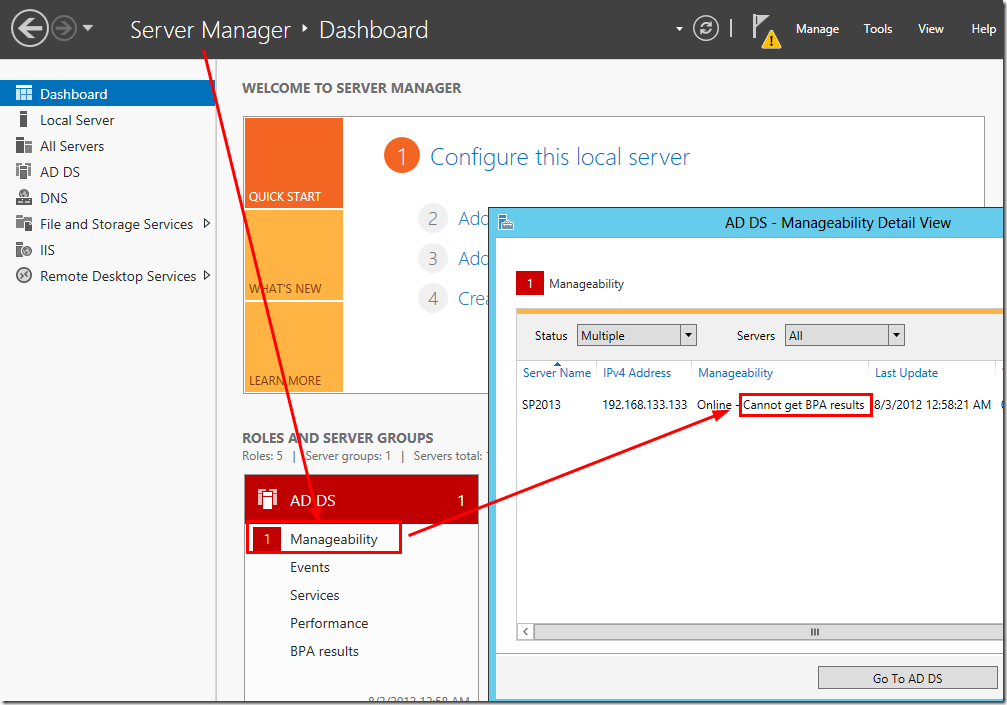
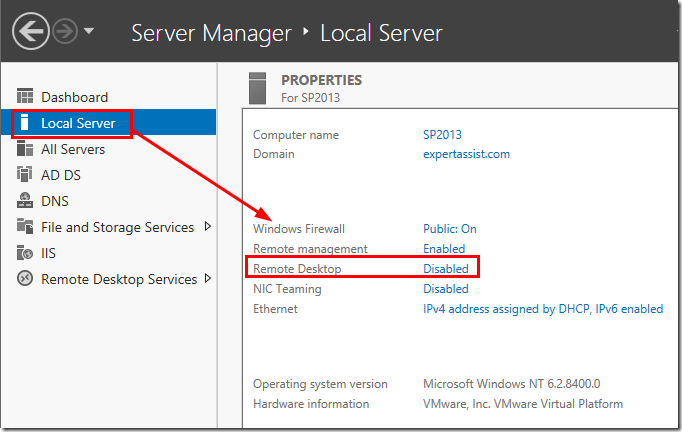
The less important issues are related to Services, which simply have not been started for Remote Desktop Services and Local Server.
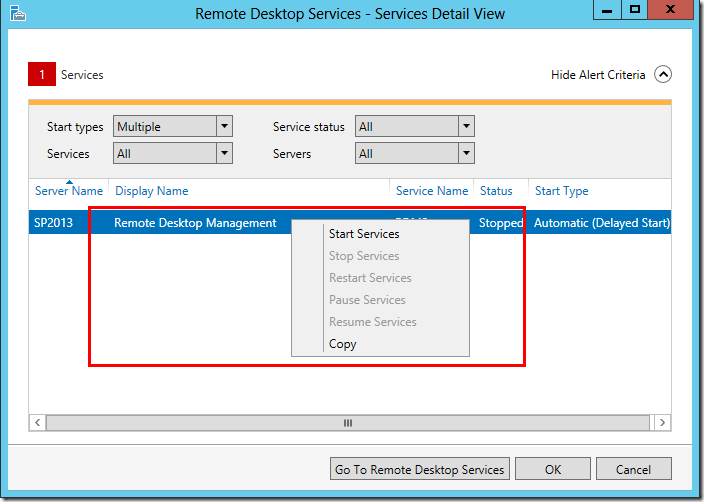
Enable Remote Desktop.
Run Windows Update
Check for Windows updates.
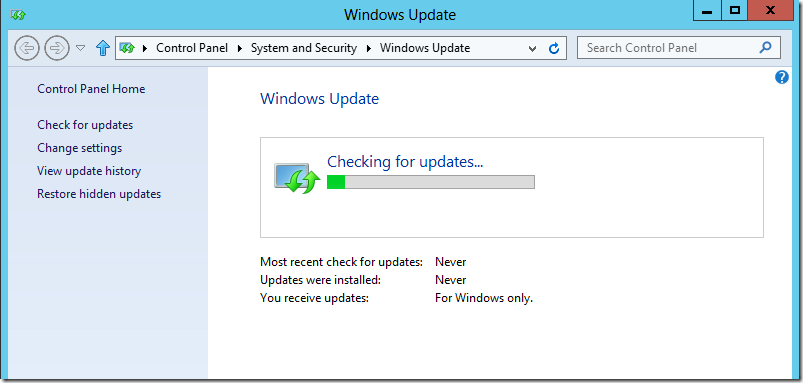
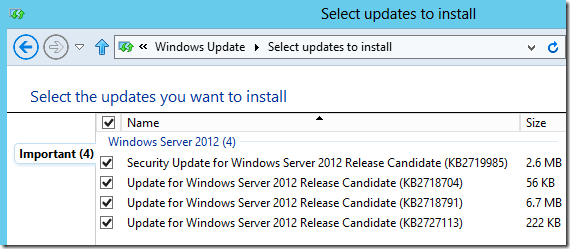
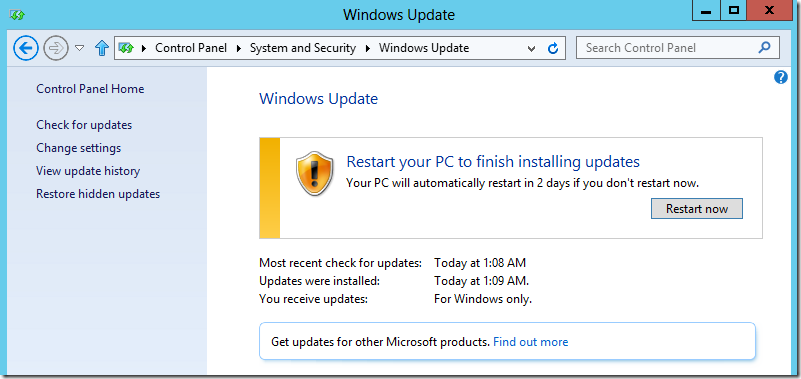
Install the updates and allow the machine to restart.
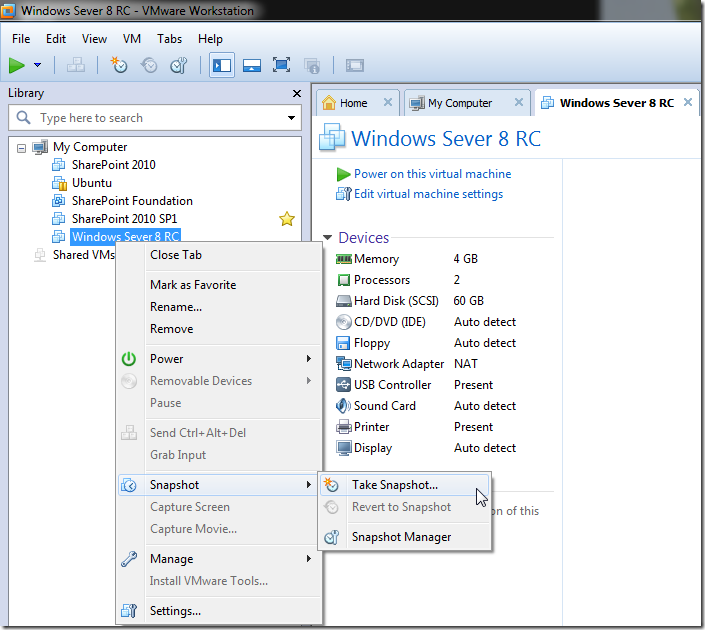
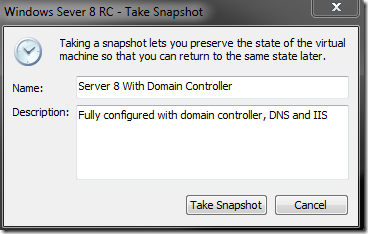
Shut down the virtual machine and take a bloody snapshot.
Windows Server 2012 is now installed on the virtual machine!
Continue onto SharePoint 2013 Lab Build Part 3 to install SQL Server 2012.
a WordPress rating system
a WordPress rating system


About the author

Ulysses Ludwig is a SharePoint architect with over 16 years in the IT and computer industry. Ulysses' primary focus is SharePoint but he dabbles in the latest web technologies and likes to develop software in his spare time.
Comment for SharePoint 2013 Lab Build - Part 2 - Windows Server 2012 Installation
[...] SharePoint 2013 Lab Build - Part 2 - Server 8 Installation [...]