-
Launch SQL Server Management Studio and connect to the server that houses your Shared Service Provider
-
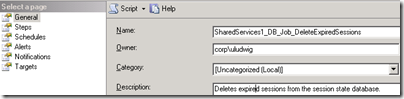
Within SSMS expand the SQL Server Agent and select jobs.
-
Locate the jobs that have names that end in "_DeleteExpiredSessions"
-
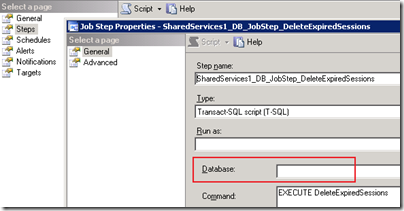
You in the "Steps" tab double click on the first step and check to see if there’s a database, if there’s no database selected you’ve probably deleted said database so you can safely disable the job.
-
If you don’t understand these instructions or are confused then STOP! Disabling SQL jobs is dangerous business and can cause undesired outcomes.
Problem
You receive hundreds if not thousands of NT Authority\SYSTEM "Login failed for user ‘NT AUTHORITY\SYSTEM’. [CLIENT: <local machine>]" error messages
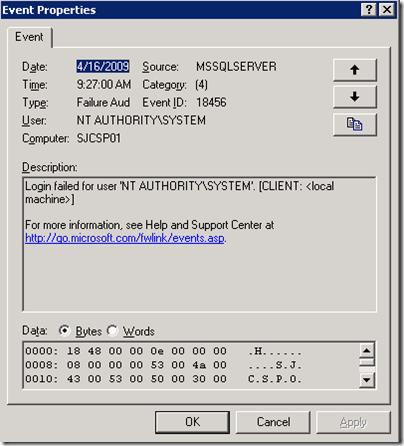
Errors often occur every minute
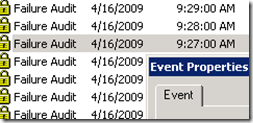
Explanation
You’ve probably deleted your Shared Service Provider or created a new one. Unfortunately, some scheduled jobs will remain on your SQL server that reference the now defunct database.
Solution
Popularity: 62% [?]
Hi, Thank you! I would now go on this blog every day!
Pett
a WordPress rating system
a WordPress rating system
i do got the similar error
and done the things as per your suggestions but still the same error
a WordPress rating system
a WordPress rating system
Do you have any SharePoint Designer workflows that you created while logged in as a System Administrator or SharePoint Application Pool account? I have noticed that this can cause problems as well.
a WordPress rating system
a WordPress rating system
thank you for this solution!!!
a WordPress rating system
a WordPress rating system
I am getting the same error except my SQL Server Agent is disabled
a WordPress rating system
a WordPress rating system
Worked like a champ!!!
Was able to locate the stale SQL job and disable it very quickly using your screenshots.
Thank you so much!
a WordPress rating system
a WordPress rating system